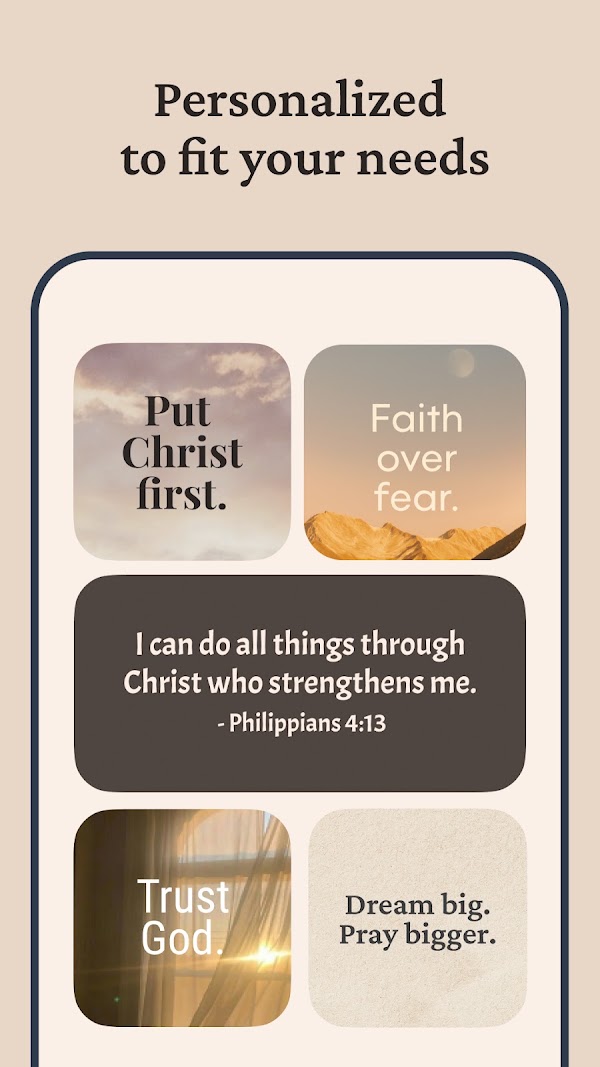
Add a Bible verse widget to your Android Home Screen, choose its size and topic, and get verses on the Lock Screen through daily reminders.
October 20, 2026
·
3 min
To get Scripture on an Android phone, add the Bible Widgets widget to your Home Screen: press and hold an empty spot, tap Widgets, find Bible Widgets and drag the size you want onto the page. The verse then changes on its own, and a daily reminder can put one on your Lock Screen as a notification.
This guide covers the Android steps from start to finish, what works on the Lock Screen and what does not, and the one setting that keeps the widget and reminders reliable on Android. You need the free Bible Widgets app from Google Play, opened once.
Does a Bible verse widget work on the Android Lock Screen?
Not as a widget. Android has no standard way for apps to place widgets on the Lock Screen, so Bible Widgets puts its widget on the Home Screen, the first page you see after unlocking. Inside the app you may see a Lock Screen widget card; on Android it is a shortcut to add the Home Screen widget, and it disappears once you have placed one.
For a verse that shows before you unlock, use reminders. A reminder is a notification at a time you choose, and Android shows notifications on the Lock Screen. A morning reminder plus a Home Screen widget gives you Scripture in both places. If you also use an iPhone, its Lock Screen widget steps are in the Lock Screen guide.
Which widget size works best on Android?
Bible Widgets offers small, medium and large widgets on Android, the same sizes as on iPhone. Small suits a short line next to your apps; medium has room for a full verse and its reference; large gives a longer passage space to breathe. On most Android phones you can resize a widget after placing it: press and hold it, then drag the handles at its edges.
Medium and large widgets can also show like and share buttons, so you can save a verse to your favorites or send it to someone without opening the app. You can place several widgets with different topics, for example one for verses and one for prayers.
How to add a Bible verse widget on Android, step by step
1. Install Bible Widgets from Google Play and open it
Open the app once before adding the widget, so it can prepare the verses the widget shows. Allow notifications if you want reminders, then go back to the Home Screen.
2. Press and hold an empty part of the Home Screen
A menu or an edit view appears. Tap Widgets. On Samsung phones the option is also called Widgets; on some launchers you pinch the Home Screen first.
3. Find Bible Widgets in the widget list
Scroll the alphabetical list or type Bible in the search field at the top. Tap the Bible Widgets entry to see the available sizes.
4. Press and hold a size and drop it on a page
Drag the small, medium or large widget to the spot you want and let go. To resize it later, press and hold the widget and drag the handles at its edges.
5. Choose what the widget shows in Widget settings
In Bible Widgets open your profile and tap Widget settings, then pick the widget. Choose a category such as Bible verses, prayers or a topic like Faith or Hope, and a theme that reads well over your wallpaper.
6. Add a morning reminder for the Lock Screen
In the app open your profile, tap Reminders and add one at the time you usually pick up your phone. The verse arrives as a notification and waits on the Lock Screen. The daily reminders guide walks through the options.
7. Turn off battery optimization for Bible Widgets
Some Android phones pause apps in the background to save power, which can stop widget updates and reminders. In the app's Reminders screen tap Notifications not working? and follow the Battery optimization link to exclude Bible Widgets.
Frequently asked questions
Why is Bible Widgets missing from my widget list?
Check that the app finished installing, then open it once and return to the widget list. If it is still missing, restart the phone; some launchers only refresh their widget list after a restart.
Can I put a Bible verse widget on a Samsung Lock Screen?
Not with Bible Widgets. Samsung limits Lock Screen widgets to a short list of supported apps, so the reliable route is a Home Screen widget plus a daily reminder, which shows on the Lock Screen as a notification.
Why does my Android widget stop changing?
Usually battery optimization. Exclude Bible Widgets from it as in the last step. On Huawei phones the app's help also asks you to allow auto-launch, secondary launch and running in the background.
Is the Android widget free?
Yes. The widget with basic customization and basic reminders are part of the free app. Premium adds per-widget themes, borders, refresh frequency presets, every category and unlimited reminders.