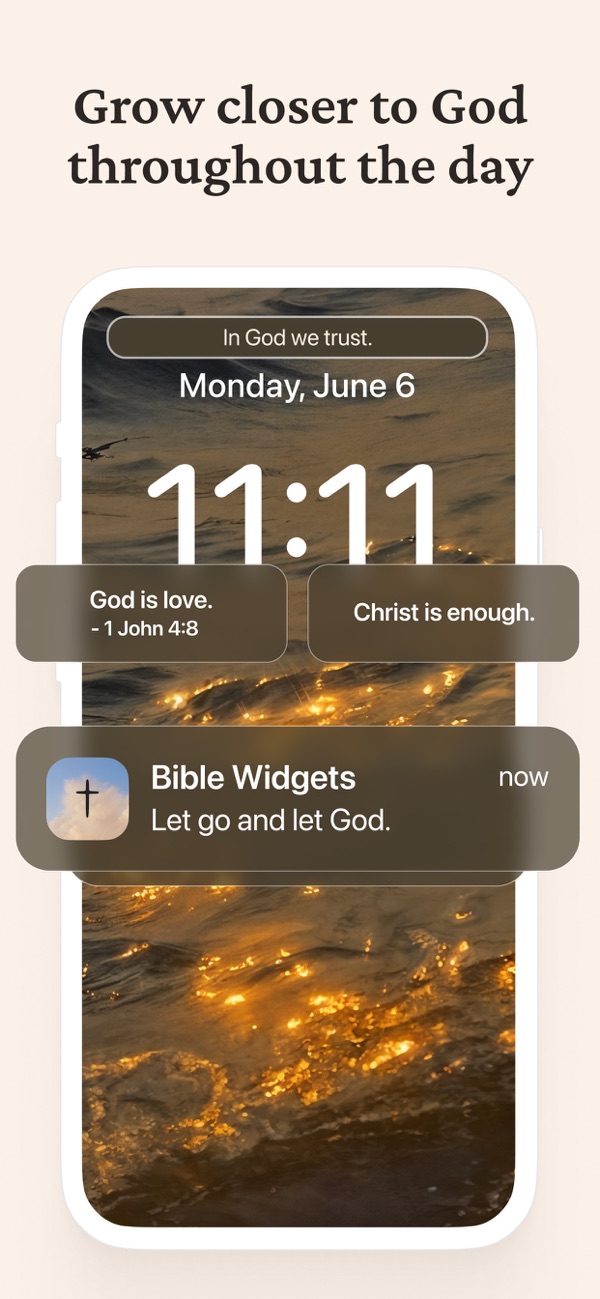
Set up a daily Bible verse notification on iPhone or Android: choose the time, days and content, and keep reminders arriving.
October 20, 2026
·
3 min
To get a Bible verse as a notification every day, open Bible Widgets, go to Profile, tap Reminders and add a reminder: choose what it sends, the time and the days it repeats. From then on a verse arrives on your Lock Screen at that time, whether or not you open the app.
This guide covers setting up a daily reminder on iPhone and Android, choosing the content and sound, and the two things that make reminders stop. You need the free Bible Widgets app with notifications allowed.
What is a daily Bible verse notification?
It is a reminder: a notification the app schedules for a time you pick, with a verse in it. Unlike a widget, which waits for you to look at the screen, a reminder comes to you, lights up the Lock Screen and can play a sound. Tapping it opens the verse in the app, where you can save it to your favorites or share it.
A reminder at the same time each morning is the simplest way to build a daily Scripture habit, because the verse arrives at the moment you have already set aside. If you want verses spread across the whole day instead, the hourly verse guide combines several reminders with a widget.
Why do Bible verse reminders stop arriving?
Two reasons cover almost every case. On iPhone, the system lets an app keep 60 notifications scheduled at a time, so Bible Widgets queues reminders in batches; if you have not opened the app for a while and they stop, opening it schedules the next batch. On Android, battery optimization can stop the app from delivering notifications in the background.
For Android, the app has a fix built in: in the Reminders screen tap Notifications not working? and exclude Bible Widgets from Battery optimization. On both platforms, also check that notifications are allowed for the app in the phone's settings. The troubleshooting guide lists the other checks.
How to set up a daily Bible verse reminder, step by step
1. Allow notifications for Bible Widgets
When the app asks to send notifications, tap Allow. If you declined earlier, turn them on in the phone's settings: on iPhone under Settings, then Notifications, then Bible Widgets; on Android in the app info screen.
2. Open Profile, then Reminders
In Bible Widgets tap your profile and choose Reminders. Any reminders already set up are listed here, and you can edit them instead of adding a new one.
3. Tap Add reminder and choose the content
Tap Add reminder, then choose what it sends, such as Bible verses or prayers, or a topic like Peace or Gratitude.
4. Set the time and the days
Under Start at pick the time, for example right after your alarm. Under Repeat choose Every day, Every weekday or Weekends. Select at least one day, or the reminder stays inactive.
5. Choose a sound, or none
Pick a notification sound from the list, or No sound if you want the verse to arrive quietly on the Lock Screen.
6. Save, then add more if you want them
Save the reminder; the app schedules the coming days straight away. The free version includes basic reminders; Unlock more reminders opens premium for as many as you like through the day.
Frequently asked questions
Can I get only Bible verses, not quotes or affirmations?
Yes. Choose Bible verses as the reminder's content. Each reminder has its own content, so one can send verses in the morning and another prayers in the evening.
Is the daily verse reminder free?
Yes. A daily reminder is part of the free app. Premium removes the limit on how many reminders you can schedule.
Can I have a reminder and a widget at the same time?
Yes, and many people do: the widget keeps a verse on the screen, the reminder brings one to you at a set time. The Lock Screen guide covers the widget side.
Do reminders work on Android?
Yes, the same way. If they stop, exclude the app from battery optimization from the Notifications not working? link in the Reminders screen. The Android guide has the other Android settings.