Add a daily Bible verse widget to your Home Screen on iPhone or Android, pick a size, then set the category, theme and refresh rate to fit your morning.
October 13, 2026
·
3 min
A daily Bible verse widget is a Home Screen widget that shows a new verse each day without you opening an app. On iPhone you press and hold the Home Screen, tap the + (or Edit, then Add Widget), choose Bible Widgets and a size; on Android you press and hold, tap Widgets, and drag the Bible Widgets widget into place. Setting the refresh frequency to Twice a day gives you a morning verse and an evening one.
Below are the exact steps for both platforms, the three widget sizes and what each is good for, and the in-app settings that control which verses you see. You need the free Bible Widgets app installed and opened once.
Which widget size should you choose?
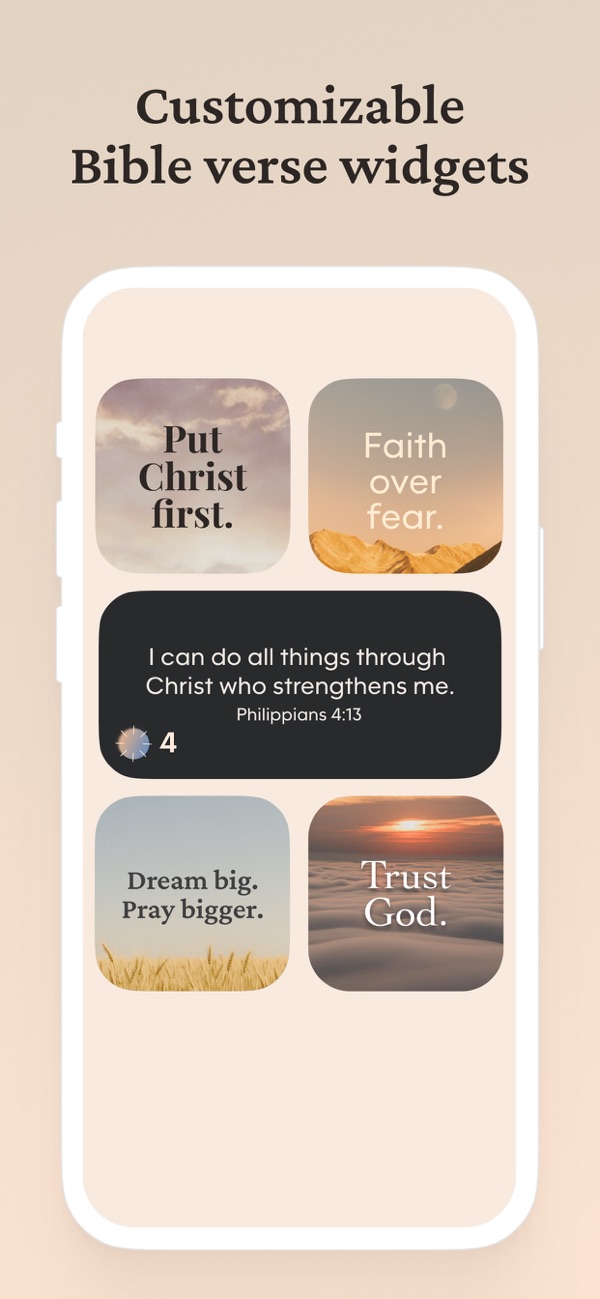
Bible Widgets offers small, medium and large Home Screen widgets. Small fits a short verse or a few words over a background; it is the one most people put next to their clock. Medium has room for a full verse and its reference, and large shows more text with space to breathe. Medium and large can also show a like and share button so you can save or send a verse without opening the app; small widgets do not have buttons.
You can add several widgets with different settings, for example a verse widget and a prayers widget, and give each one a name in Widget settings so they are easy to tell apart.
How do you make it change once a day?
The refresh rhythm lives in the app, not in the phone's widget menu. Open your profile, tap Widget settings, pick the widget, and set Refresh frequency. Twice a day is the closest to a classic verse-of-the-day; Never keeps one verse until you change it; Occasionally and Frequently rotate through the day. The same screen sets the theme, text size, category and whether the widget shows a border. Category, name and text size are free; per-widget themes, borders and the refresh frequency presets are part of premium's advanced widget customization, and a free widget rotates on its default rhythm.
How to add the daily Bible verse widget, step by step
1. Install the app and open it once
“Both iOS and Android only offer an app's widgets after it has been launched at least once. Open Bible Widgets, let it load, and you are ready.”
2. iPhone: press and hold an empty spot on the Home Screen
“When the icons start to wiggle, tap the <strong>+</strong> in the top corner. On iOS 18 tap <strong>Edit</strong> first, then <strong>Add Widget</strong>.”
3. iPhone: search for Bible Widgets and pick a size
“Type <em>Bible Widgets</em> in the search field, swipe between the small, medium and large previews, and tap <strong>Add Widget</strong>. Drag it where you want it and tap <strong>Done</strong>.”
4. Android: press and hold the Home Screen and tap Widgets
“Scroll the widget list to <strong>Bible Widgets</strong>, press and hold the size you want, and drop it on a Home Screen page. On some phones you can resize it afterwards by pressing and holding the widget and dragging its edges.”
5. Open Widget settings in the app
“In Bible Widgets go to your profile, then <strong>Widget settings</strong>. Each widget you have placed is listed here. Tap one to configure it.”
6. Set the category and the refresh frequency
“Choose what the widget shows, such as Bible verses, prayers, affirmations, Christian quotes or a topic like Faith or Hope, and set the frequency. For a verse of the day choose <strong>Twice a day</strong>; for one verse that stays put choose <strong>Never</strong>.”
7. Match the theme to your Home Screen
“By default the widget follows the theme you use in the app. You can give it its own theme instead, change the text size, turn the like and share buttons on or off, and add a border so it reads clearly over any wallpaper.”
Frequently asked questions
Why does the widget say nothing or show a placeholder?
Open the app once and give it a moment. Widgets are filled after the first launch, and the first verse appears at the next refresh point, which is usually within a few minutes of placing the widget.
Can I have the same verse on the widget and in the app?
Set the widget's category to Favorites and add the verse you want there. The widget then draws only from your saved verses, so with one favorite it shows that verse.
How many widgets can I add?
As many as your Home Screen holds. Each one has its own category, theme and frequency in Widget settings, and you can name them so you know which is which.
Does a daily Bible verse widget work on Android?
Yes. Bible Widgets is on Google Play, and the Home Screen widget is added from the Widgets menu like any Android widget. Lock Screen widgets are the one iPhone-only feature.
Is the widget free?
Yes. Widgets with basic customization are part of the free app. Premium adds the full theme library, custom themes, widget borders and refresh frequency options, and unlocks every category.