Put a Bible verse on your Lock Screen in under two minutes: the iPhone widget steps, what to do on Android, and how to pick the verses you see.
October 13, 2026
·
3 min
The fastest way to put a Bible verse on your Lock Screen is a Lock Screen widget: on iPhone (iOS 16 or later) you press and hold the Lock Screen, tap Customize, and add the Bible Widgets widget to the space under the clock. From then on a verse is the first thing you read every time you pick up your phone, before you unlock anything.
This guide walks through the iPhone steps, explains what to do on Android (which handles the Lock Screen differently), and shows how to choose the categories and refresh rhythm so the verses fit your day. You need the free Bible Widgets app installed and opened once.
What does a Bible verse Lock Screen widget look like?
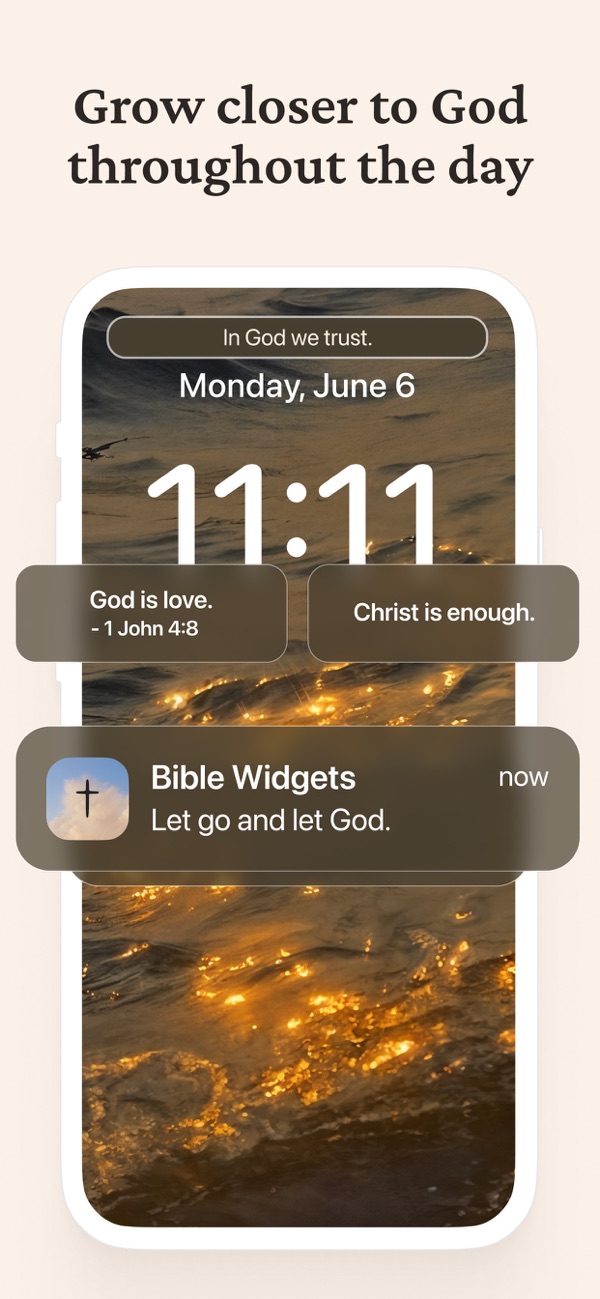
iPhone Lock Screen widgets sit in a strip beneath the time. They come in two shapes: a rectangular widget with room for a short verse and its reference, and a smaller circular widget for a few words. Bible Widgets supports both, and you can place more than one in the strip, for example a verse on the left and a short prayer on the right.
Because the widget updates on its own, you do not have to open the app for the verse to change. How often it changes is up to you, from twice a day to every few minutes, which the steps below cover.
Can you put a Bible verse widget on an Android Lock Screen?
Most Android phones do not allow third-party widgets on the Lock Screen, so the Lock Screen widget steps below are iPhone-only. On Android you get the same effect two ways: add the Bible Widgets widget to your Home Screen (the first screen after unlocking), and turn on daily reminders in the app so a verse arrives as a notification that shows on the Lock Screen itself. The Home Screen steps are in the daily Home Screen widget guide.
How to add a Bible verse widget to your iPhone Lock Screen
1. Install Bible Widgets and open it once
“Download the app from the App Store and open it one time. iOS only lists an app's widgets after the app has been launched, so if Bible Widgets is missing from the widget picker later, this is the step that was skipped.”
2. Press and hold your Lock Screen
“Wake the phone with Face ID or your passcode but stay on the Lock Screen. Press and hold anywhere on it until the wallpaper gallery appears, then tap <strong>Customize</strong> and choose <strong>Lock Screen</strong>.”
3. Tap the widget area under the clock
“Tap the empty strip directly beneath the time. A list of apps that offer Lock Screen widgets opens. Scroll or search for <strong>Bible Widgets</strong>.”
4. Choose rectangular or circular
“Pick the <strong>rectangular</strong> widget if you want the verse text and reference readable at a glance; pick <strong>circular</strong> for a compact word or two. Tap it (or drag it) into the strip. You can add a second widget next to it.”
5. Tap Done, then confirm
“Tap <strong>Done</strong> in the top corner and confirm with <strong>Set as Wallpaper Pair</strong> or <strong>Customize Home Screen</strong>. Lock your phone and wake it: the verse is now on the Lock Screen.”
6. Choose categories and refresh rhythm in the app
“Open Bible Widgets and go to your profile, then <strong>Widget settings</strong>. The Lock Screen widget has its own settings: the categories it draws from (verses, prayers, affirmations, quotes), the font, and how often it refreshes: Never, Twice a day, Occasionally (one or two an hour), Frequently (8 to 12 a day) or Very frequently. The refresh presets are part of premium's advanced widget customization; the free widget rotates on its default rhythm.”
7. Add reminders if you want verses as notifications too
“Reminders are separate from the widget. A reminder is a notification at a time you choose, and it appears on the Lock Screen whether or not you have a widget. Many people use both: the widget for a verse that is always there, a morning reminder for one that arrives.”
Frequently asked questions
Why does Bible Widgets not appear in the Lock Screen widget list?
Two causes cover almost every case: the app has not been opened since it was installed, or the phone is on iOS 15 or earlier. Lock Screen widgets need iOS 16 or later. Open the app once, then press and hold the Lock Screen again.
Can I choose which verse shows on the Lock Screen?
You choose the categories the widget draws from, and the refresh frequency, in the app under Widget settings. Setting the frequency to Never keeps the current verse in place until you change it. To see a specific verse every time, add it to your favorites and set the widget's category to Favorites.
Does the Lock Screen widget use battery?
Very little. iOS refreshes widgets on a schedule rather than continuously, and Bible Widgets only prepares the next verses at the times your frequency setting asks for. A less frequent setting uses less.
Is the Lock Screen widget free?
Yes. Widgets are part of the free app with basic customization. Premium unlocks every category and the full theme library, plus custom themes and unlimited reminders; see the free vs. premium guide below.
What about an Android Lock Screen?
Android does not offer third-party Lock Screen widgets on most phones. Use the Home Screen widget plus daily reminders: the reminder notification shows on the Android Lock Screen.